
The #1 Free Audio Converter. Batch-process MP3, WAV, FLAC & more locally in your browser. Total privacy, zero server uploads.
Price Currency: USD
Operating System: Web Browser
Application Category: MultimediaApplication
AUDIOFORGE
Free audio converter, trimmer & batch editor — 100% browser-based, zero uploads
Add audio files to begin.
or click to browse
to view details and trim
AudioForge — The Ultimate Free Audio Converter, Trimmer & Batch Editor
Welcome to AudioForge — the most capable free audio converter online, a completely browser-native audio powerhouse built for anyone who works with sound. Whether you need a fast MP3 to WAV converter, a batch FLAC-to-M4A pipeline, or a visual waveform trimmer to cut the perfect ringtone, AudioForge handles it all locally on your own device — with no file uploads, no accounts, no watermarks, and no time limits. Every byte of your audio stays on your machine from start to finish.
Every Format, Every Direction — True Any-to-Any Conversion
AudioForge — your dedicated free audio converter — supports 11 audio formats for both input and output, with full bidirectional conversion in any combination. This free audio converter is powered by a triple-engine architecture — the native Web Audio API for instant lightweight decoding, the LameJS MP3 encoder for high-quality MP3 generation, and a WebAssembly FFmpeg engine for professional-grade codec support — no route is off-limits.
Standard Formats (always available, instant — no engine loading required)
- WAV — Uncompressed PCM lossless. Industry standard for audio editing, Foley work, and studio sessions. Perfect output for anything you’ll re-process later. Supports 16-bit stereo and mono at any sample rate.
- MP3 — The universal compressed format. Encoded via LameJS at your chosen bitrate (64–320 kbps). Ideal for music streaming, podcasts, and any delivery where file size matters.
- AIFF — Apple’s lossless PCM container, equivalent to WAV in quality. The preferred archival format for macOS and Logic Pro workflows. Big-endian 16-bit PCM.
Pro Formats (via WebAssembly FFmpeg — loads once, cached automatically)
- FLAC — Free Lossless Audio Codec. Perfect lossless compression, typically 40–60% smaller than WAV. The gold standard for archiving music collections without any quality loss.
- OGG Vorbis — Open-source lossy compression. Technically superior to MP3 at equivalent bitrates. Royalty-free and ideal for game audio, open-source projects, and web-embedded audio.
- M4A / AAC — Advanced Audio Coding in Apple’s M4A container. The native format of iTunes, iPhone, and most modern streaming services. Excellent quality-to-size ratio at 128–256 kbps.
- OPUS — The most efficient modern audio codec. Outperforms MP3 and AAC at low bitrates, making it the top choice for voice, video conferencing, and bandwidth-constrained streaming (used by Discord, Zoom, YouTube).
- AAC (raw) — Pure AAC stream without an M4A container wrapper. Used in broadcast, HLS video streams, and specialized device delivery pipelines.
- WMA — Windows Media Audio. Required for legacy Windows Media Player compatibility and certain corporate or enterprise audio workflows on older systems.
- AC3 (Dolby Digital) — The multi-channel surround sound codec used in DVDs, Blu-rays, and home theater receivers. Essential for video production, broadcast authoring, and 5.1 surround audio workflows.
- ALAC — Apple Lossless Audio Codec. Bit-perfect quality stored in an M4A container (.m4a extension). The lossless equivalent of AAC — perfect for Apple ecosystem users who want perfect quality with native iTunes compatibility.
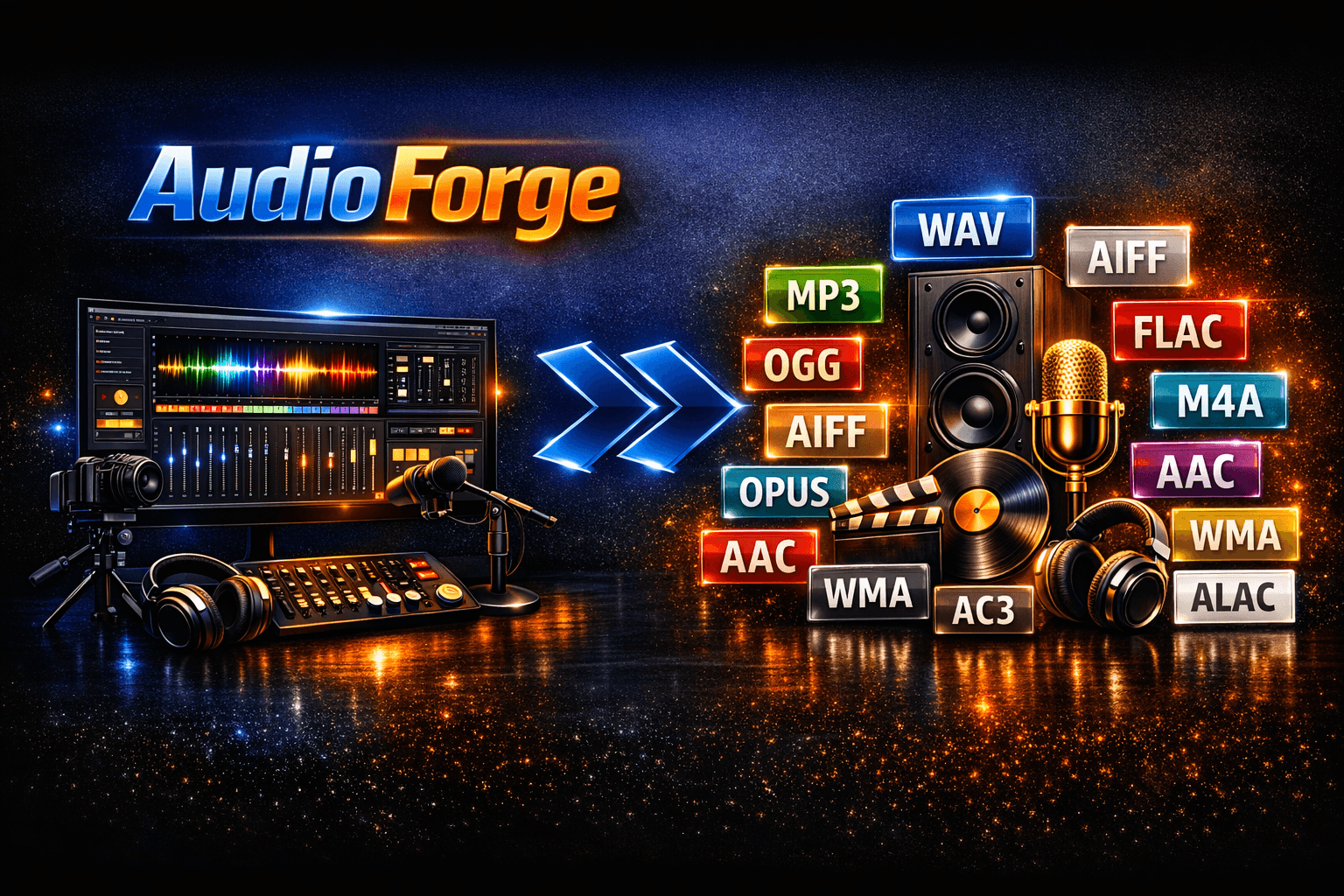
All in One Secured Sound Converter.
Supported Conversion Routes (all combinations work)
AudioForge converts any format to any format. Every route below is fully supported — click Convert All after selecting your output format.
WMA, AC3, ALAC input files are decoded via FFmpeg bridge. All conversions work correctly — waveform preview is not available for these input formats.
Why AudioForge Is the Best Free Audio Converter Online
When you search for a free audio converter online, you’ll find dozens of tools — but most force you to upload files to a remote server, impose daily limits, add watermarks, or require an account. AudioForge was built to be a genuinely different kind of free audio converter: one that runs the entire pipeline inside your browser, with zero compromises on privacy or functionality.
Here is how AudioForge compares as a free audio converter against the most popular alternatives:
- vs. Zamzar, Convertio, CloudConvert: These are cloud-based converters — your files leave your device and are processed on remote servers. AudioForge is a local-first free audio converter that never transmits your audio data. If privacy and speed matter, there is no comparison.
- vs. Audacity, VLC: Powerful desktop apps, but they require a full installation. AudioForge is an instant-use free audio converter that opens in any browser tab — no install, no setup, no admin privileges needed.
- vs. Online AudioConverter, Media.io: These tools support fewer formats, impose file size caps, and throttle free users. AudioForge is a truly unlimited free audio converter — no file size caps, no daily quotas, no paid tiers, ever.
The bottom line: if you need a reliable, private, and fast free audio converter that works without sign-ups or restrictions, AudioForge is the right choice. It is built on the same codec libraries as professional desktop software — LAME, FFmpeg, libopus, libvorbis — all running in your browser via WebAssembly.
Professional Visual Waveform Trimmer
AudioForge — the leading free audio converter online — features a fully interactive, sample-accurate audio trimmer built directly into the file detail panel. When you select any compatible file, a real waveform is rendered in real time on an HTML5 canvas — showing actual amplitude peaks and valleys, not a generic placeholder. You can then:
- Drag the orange handles on the waveform to set precise start and end cut points — down to 1 millisecond accuracy.
- Click anywhere on the waveform to snap the nearest handle to that position instantly.
- Preview your trim using the built-in playback engine before committing. The playhead animates across the waveform in real time so you can hear exactly what will be exported.
- Apply per-file trims — each file in your batch can carry its own unique trim region, completely independent of the others. One file can be trimmed to 0:30–1:15, another from 2:00–3:45.
- Global Trim override — set a universal trim start/end in the Output Settings panel that applies to all files in the batch simultaneously, useful for stripping identical intros or outros.
- Reset anytime — click Reset to restore full file length without losing your other settings.
Studio-Grade Audio Controls
As a fully featured free audio converter, AudioForge gives you professional-grade output controls — not just format switching.
The volume slider lets you boost quiet recordings by up to +20 dB or attenuate over-loud audio by up to -20 dB. Gain is applied during the audio processing stage before encoding — not as a simple metadata tag — so the actual PCM samples are adjusted. Perfect for normalizing interview recordings, boosting old vinyl rips, or quieting clipped field audio.
Bitrate Control (64–320 kbps)
The bitrate slider gives you full control over compressed output quality. At 64 kbps you get compact voice-quality files for podcasts and voice messages. At 192 kbps you hit the sweet spot for music streaming. At 320 kbps you reach transparent quality indistinguishable from lossless for most listeners. For lossless formats (WAV, AIFF, FLAC, ALAC), the bitrate control is automatically hidden — lossless means lossless.
Sample Rate Conversion
Resample your audio between 22,050 Hz (voice/archival), 44,100 Hz (CD quality, the universal standard), 48,000 Hz (DVD/video production standard), and 96,000 Hz (HD studio quality). Downsampling uses AudioForge’s OfflineAudioContext resampling pipeline for accurate pitch-correct interpolation — not a simple decimation that introduces aliasing.
Channel Conversion (Mono / Stereo)
Switch any audio between Mono (1 channel) and Stereo (2 channels), or keep the original channel count. Converting stereo music to mono sums both channels for podcast/voice delivery. Converting mono voice recordings to stereo duplicates the channel for compatibility with players that expect stereo input.
Smart Batch Processing Engine — Batch Audio Converter Online
AudioForge was built from the ground up for batch workloads, not just single-file conversions. As a free audio converter and batch audio converter online with no queue limits, when you load multiple files, the engine’s smart queue manager takes over:
- Smart 50 MB grouping: Files under 50 MB are grouped together into memory-safe processing batches. When a batch would exceed 50 MB, it’s sealed and the next group begins — preventing browser out-of-memory errors on large libraries.
- Large file time-splitting: Files over 50 MB are automatically segmented into time-based chunks (~48 MB per chunk). Each chunk is converted independently, then the results are losslessly stitched back together into one seamless output file. A 1-hour, 240 MB audio file is handled transparently as five segments — all joined back into a single perfect output.
- Progressive download panel: The Converted Files panel updates after each file completes, so you can start downloading early results while the rest of the batch is still converting.
- Individual and batch download: Save each file with its own Save link, or click Download All as ZIP once everything is done to get the full batch in a single organized ZIP archive.
100% Private, Secure & Legal — No Uploads, Ever
Unlike traditional cloud-based converters that require you to upload your audio to a remote server — where it sits on someone else’s infrastructure, gets logged, processed, potentially stored, and exposed to breach risks — AudioForge operates entirely within your own browser using WebAssembly and Web Audio APIs. This is what makes AudioForge the safest free audio converter available online.
When you open AudioForge, the conversion engine loads directly into your browser’s sandboxed memory. Your audio files are decoded, processed, re-encoded, and made available for download without ever leaving your machine. AudioForge’s server serves only the page code — it never sees, receives, stores, or transmits any of your audio data.
Legal standing: Because all format-shifting, trimming, and re-encoding happens locally on your own personal hardware using your own local copy of the processing engine, using AudioForge for personal backup, format interoperability, and file management is consistent with standard digital fair-use frameworks in most jurisdictions globally, including GDPR (EU), CCPA (California), and standard copyright fair-use provisions for personal use.
How to Use AudioForge Free Audio Converter — Full Step-by-Step Guide
- Load your audio files: Drag and drop files directly onto the upload zone, or click it to open a file browser. You can select multiple files at once using Ctrl (Windows) or Cmd (Mac). This free audio converter accepts MP3, WAV, FLAC, OGG, M4A, AIFF, AAC, OPUS, WMA, AC3, and ALAC files.
- Select a file to preview it: Click any file in the left-hand file list. The right-hand Detail Panel loads a real-time waveform of that file, along with its metadata — duration, sample rate, file size, and format badge.
- Trim your file (optional): The trim editor is always visible in the Detail Panel. Drag the orange start and end handles on the waveform to define your cut region. Click Preview to hear exactly what will be exported, then click Apply Trim to save that trim point to the file. Each file remembers its own unique trim independently.
- Play the full file: Use the Full File playback row (play and stop buttons) in the Detail Panel to listen to the original file directly in the browser before converting.
- Configure your output settings: In the Output Settings panel, choose your target format from the dropdown (Standard or Pro Formats). Set your sample rate, channel mode, volume adjustment, and bitrate. For the Global Trim fields, enter start and end times in seconds to apply a uniform trim across the entire batch.
- Monitor the engine: The Engine Monitor box shows live status — whether FFmpeg encoders are loading, ready, or unavailable. It also shows real-time logs during conversion, including which file is processing and segment-by-segment progress for large files.
- Convert: Click Convert All. The orange button locks to show a spinner and “Converting…” state while processing is underway. Each file’s status dot in the file list updates in real time — orange pulsing for in-progress, green for complete, red for any error.
- Download your results: The Converted Files panel appears as soon as the first file completes. Click the Save button on any individual row to download that file immediately. Once the full batch is done, click Download All as ZIP to get everything in one archive.
- Keyboard shortcuts: Press Spacebar to toggle trim preview playback. Press Escape to stop all playback.
Technical Reference
- Web Audio API — MDN Web Audio API documentation — the browser-native audio decoding and rendering engine underlying AudioForge’s core pipeline.
- FFmpeg (WebAssembly port) — ffmpeg.org — the industry-standard open-source multimedia framework powering AudioForge’s Pro Formats encoding. Runs via Emscripten/WebAssembly in the browser sandbox.
- LameJS — LameJS on GitHub — a JavaScript port of the LAME MP3 encoder, providing high-quality MP3 encoding without requiring FFmpeg for standard use cases.
- JSZip — stuk.github.io/jszip — the ZIP generation library used to package batch conversion results into a single downloadable archive, running entirely in the browser.
- WebAssembly (Wasm) — webassembly.org — the binary instruction format enabling near-native performance of C/C++ codecs (FFmpeg, LAME) inside the browser sandbox.
- OfflineAudioContext — MDN OfflineAudioContext — used for sample-rate conversion, channel remapping, and trim rendering at full CPU speed without real-time playback constraints.
- AudioForge by AIToolboxBD — aitoolboxbd.com/free-audio-tools — the best free audio converter for creators, developers, and audio professionals. Part of the free AI and productivity tool suite.
Frequently Asked Questions
Is AudioForge completely free?
Yes — AudioForge is a 100% free audio converter, permanently. There are no subscription plans, no hidden limits, no daily conversion caps, no watermarks on any output audio, and no account required at any step. It is a free public tool provided by the AIToolboxBD network.
Do my audio files get uploaded to a server?
Never. Unlike other services, this free audio converter runs its entire pipeline — decoding, trimming, re-encoding, and packaging — inside your browser using WebAssembly and the Web Audio API. Your audio files are never transmitted over the network. AudioForge’s server only delivers the application code; it has no mechanism to receive your files.
Why do Pro Formats take a moment to become available?
When using AudioForge as your free audio converter, standard formats (WAV, MP3, AIFF) are encoded by lightweight scripts that load instantly. Pro Formats like FLAC, OGG, M4A, OPUS, WMA, AC3, and ALAC require the WebAssembly FFmpeg engine (~15 MB). It loads automatically in the background when you open AudioForge and is cached by your browser on first use — so future visits are instant. The Engine Monitor box in the settings panel shows the exact loading status in real time.
Can I convert WMA, AC3, or ALAC files?
Yes. As a browser-based free audio converter, AudioForge routes WMA, AC3, and ALAC through the FFmpeg WebAssembly engine since the Web Audio API cannot natively decode these formats. These files load with an “FFmpeg mode” indicator — waveform preview is not available for them, but full conversion to any output format works correctly. Use the Global Trim fields in Output Settings to trim these files instead of the visual editor.
What happens with files larger than 50 MB?
Files over 50 MB are automatically processed using AudioForge’s large-file segment engine. The file is divided into time-based segments (each approximately 48 MB), each segment is converted independently, and all segments are concatenated back into a single seamless output file. For MP3, segments are merged as binary streams. For WAV, a rebuilt RIFF header is generated with the correct total data size. For container formats (M4A, FLAC, OGG, etc.), FFmpeg’s concat demuxer is used for a lossless, re-encode-free join. A 1-hour, 240 MB audio file is handled transparently as five segments — you receive one complete output file.
Can I batch convert an entire album at once?
Yes. This free audio converter handles unlimited batch jobs. Drop your entire folder of files into the drop zone, configure your output format and settings once, and click Convert All. AudioForge will process every file sequentially in smart memory groups (50 MB batches), update the results panel as each file finishes, and let you download everything individually or as a single ZIP. The only practical limit is your device’s available RAM — typical modern computers handle hundreds of files comfortably.
Can I trim different parts of different files in a batch?
Yes. This free audio converter stores an independent trim region per file in your batch. Select a file, set your trim handles, click Apply — and that file’s trim is stored separately. Switch to the next file and set different trim points. When you click Convert All, each file uses its own per-file trim settings. Any file without a per-file trim applied will use the Global Trim values from the Output Settings panel instead.
Which browsers are supported?
This free audio converter works in any modern desktop browser that supports WebAssembly and the Web Audio API: Chrome 80+, Firefox 79+, Edge 80+, and Safari 15.2+. For the best performance and FFmpeg stability, Chrome or Edge is recommended. Mobile browser support exists but is limited by available device RAM for large files.
Is the audio quality the same as desktop converters?
Yes. AudioForge as a browser-based free audio converter uses the same encoding libraries as professional desktop tools. This free audio converter produces bit-identical output to native desktop software. The MP3 encoder is LAME (the same encoder used by Audacity, iTunes, and most DAWs). The FFmpeg WebAssembly port uses the same codecs as the desktop FFmpeg binary — libmp3lame, libvorbis, libopus, aac, flac, alac, wmav2, ac3. The only difference from a native desktop install is that WebAssembly runs at approximately 60–80% of native CPU speed, meaning large files may take slightly longer — but the codec output is identical.
Can I extract audio from a video file (MP4, MKV, etc.)?
Yes! While AudioForge specializes in high-speed audio-to-audio conversion, we built a dedicated tool specifically for videos. If you need to extract audio directly from a video file with a visual timeline, check out our free video to audio converter, CLiPRiP.
AudioForge is the most powerful free audio converter and audio trimmer in the free tool suite at AIToolboxBD — a growing collection of browser-based productivity and AI tools built for creators, developers, and everyday users. No installs, no accounts, no paywalls. Explore the full Audio Tools collection and Video Tools collection for more free utilities. Need image conversion? Try ConvertMaster — our free universal image converter that handles 30+ formats entirely in the browser. Or head back to the AIToolboxBD homepage to discover everything available.