
Free browser-based video to audio converter. Extract audio from MP4, MKV, MOV, AVI and more in your browser. No uploads, 100% private.
Price Currency: USD
Operating System: Web Browser
Application Category: MultimediaApplication
CLiPRiP
Video to audio converter & MP4 to MP3 extractor — 100% secure browser-based video to audio converter with zero uploads.
Set In/Out points
and press Save Clip.
The Only Browser-Based Video to Audio Converter With No File Size Limit
CLiPRiP is the world’s most capable browser-based video to audio converter — and the only one that imposes zero restrictions on file size. Load a 500 MB recording or a 22 GB film. Extract its complete audio track as a studio-quality MP3, lossless WAV, FLAC, or any of 11 professional formats, all inside your browser tab. No account. No upload. No watermark. No file size cap. Your video never leaves your device — not even one byte of it.
Most online video to audio converters cap free users at 100 MB to 1 GB and process files on their own servers, meaning your private recordings travel to a data centre you don’t control. CLiPRiP is architecturally different: all decoding, trimming, and encoding happens locally using a WebAssembly port of the industry-standard FFmpeg engine running inside your browser tab. There is no server to send your file to because there is no server involved at all.
Built on the same battle-tested audio engine powering AudioForge, CLiPRiP handles MP4, MKV, MOV, AVI, WEBM, FLV, WMV, TS, and M4V containers with equal confidence. Load a video once, mark as many clip segments as you need with a visual timeline, and extract them all in one batch — a workflow no cloud converter can match.
No File Size Limit: How the Multi-Pass Engine Works
CLiPRiP’s adaptive multi-pass engine is what makes giant files possible in a browser. Instead of loading an entire 20 GB file into memory at once — a task that would instantly crash any browser tab — CLiPRiP divides the file into sequential passes, each sized to fit comfortably within available device RAM (256 MB to 1.1 GB per pass, scaled automatically to your hardware tier). Each pass loads its slice, lets FFmpeg extract the audio segment within that window, then unlinks the slice and frees the memory before loading the next. Final segments are stitched into one clean output file.
A 22.3 GB MP4 file runs in 45 passes. A 2.4 GB HEVC film runs in 5 passes. A 500 MB clip runs in a single pass. The user experience is identical for all three: click Extract Audio, watch the engine monitor, download the result. No upload. No waiting for a server queue. No file size error.
CLiPRiP also handles non-fast-start MP4 files — files where the movie index (moov atom) sits at the end rather than the beginning. A dedicated MP4 atom parser reads the index from the last 80 MB of the file, rebuilds it with corrected byte offsets per pass, and feeds each synthetic partial file to FFmpeg. This is the same technical challenge that causes most desktop extractors to fail on raw camera recordings and unprocessed video exports.
Supported Video Input Formats
- MP4 / M4V — Universal container. H.264, H.265 (HEVC), AV1, and AAC audio all decoded correctly. Fast-start and non-fast-start variants both handled.
- MKV — Matroska container. Supports virtually any codec combination including multi-track audio, subtitles, and HDR metadata.
- MOV — Apple QuickTime. Standard export from iPhone, DSLR cameras, DaVinci Resolve, and Final Cut Pro.
- AVI — Legacy Windows container with format-aware header detection for reliable multi-pass extraction.
- WEBM — Web-native VP8/VP9/AV1 container with Vorbis or Opus audio tracks.
- WMV / ASF — Windows Media. ASF header object parsed precisely for lossless multi-pass splitting.
- FLV — Flash Video. Metadata script tag detected within first 256 KB for reliable large-file extraction.
- TS — MPEG Transport Stream. Broadcast recordings, DVR captures, and IPTV recordings.
- MPG / MPEG / 3GP — Older formats fully supported via the FFmpeg decoder.
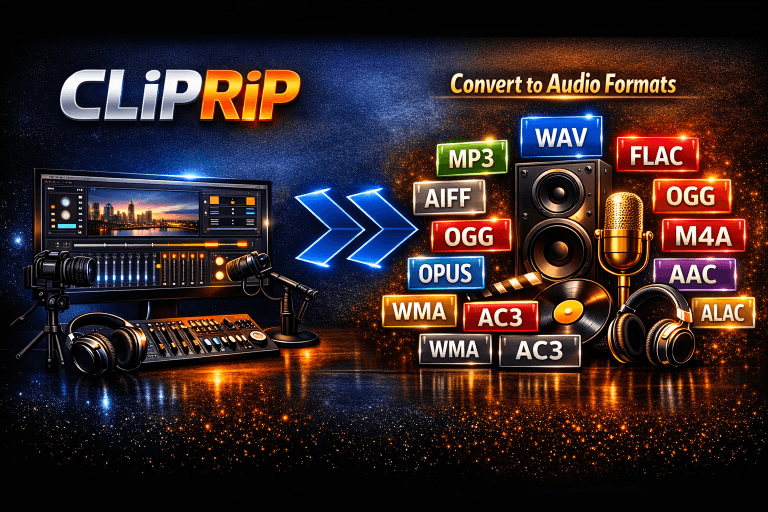
Supported Audio Output Formats — 11 Professional Options
- MP3 — Universal standard. LAME encoder at your chosen bitrate (64–320 kbps). Works everywhere.
- WAV & AIFF — Uncompressed PCM lossless. Maximum fidelity for DAW import, audio editing, and archiving.
- FLAC & ALAC — Lossless compression: CD-perfect audio in 40–60% less space than WAV.
- AAC / M4A — High efficiency at low bitrates. Native iTunes, iPhone, and broadcast standard.
- OGG Vorbis & OPUS — Open-source streaming formats. OPUS delivers voice-quality audio at under 64 kbps.
- AC3 — Dolby Digital surround sound. Extracts multichannel audio from cinema recordings intact.
- WMA — Windows Media Audio. Legacy Windows Media Player compatibility.
CLiPRiP — No Upload. No File Size Limit. 100% Browser-Based. 100% Free.
Every Video-to-Audio Conversion Route — All Formats, All Sizes
CLiPRiP processes audio from any supported video container to any supported audio format in a single extraction pass. Every route below has been tested including on multi-gigabyte source files.
⚙️ How to Use CLiPRiP — Step-by-Step Guide
- Load your video: Drag and drop any video file onto the player, or click to browse. Any size. Any format. The file stays entirely on your device.
- Set your clip start (In): Play or scrub to the moment you want your audio clip to begin. Click Start or press [I].
- Set your clip end (Out): Continue to where you want the clip to end. Click End or press [O].
- Preview before saving: Click the yellow play button to hear only the selected region.
- Save the clip: Click Save Clip or press [S]. Repeat to add more clips — there is no limit on how many you save from one video.
- Configure output: Choose your format, sample rate, channels, and volume boost. CLiPRiP offers 11 output formats from 192 kbps MP3 to 24-bit FLAC.
- Extract audio: Click Extract Audio. The engine processes every saved clip through the adaptive multi-pass pipeline. For very large files, a real-time pass counter shows progress.
- Download: Save each file individually or click Download All as ZIP.
Technical Architecture
- FFmpeg WebAssembly (v0.11.6) — The FFmpeg multimedia framework compiled to WebAssembly. Handles every decode, encode, and remux operation. Runs entirely in your browser tab.
- Adaptive Multi-Pass Engine — Automatically scales pass size (256 MB–1.1 GB) to your device RAM tier. Handles files of any size through sequential slice processing with per-pass WASM FS management.
- MP4 Atom Parser — Custom moov atom reader handles non-fast-start MP4 files (camera raw, unprocessed exports) by rebuilding per-pass byte offset tables from the file index.
- Format-Aware Container Headers — AVI hdrl chunk, WMV/ASF header object, and FLV metadata are read precisely so FFmpeg gets complete codec information on every pass slice.
- Wake Lock API — Screen and tab stay active automatically during multi-pass extractions, preventing OS sleep from interrupting a 45-pass job. Re-acquired automatically if you switch tabs mid-extraction.
- JSZip — In-browser ZIP packaging. Download all extracted clips as a single archive without any server involvement.
- Web Audio API — Real waveform rendering for supported formats. Pseudo-waveform fallback for unsupported codecs.
CLiPRiP vs. Every Alternative — An Honest Comparison
No other free tool combines zero upload, zero file size limit, batch clip extraction, and 11 output formats in a browser. Here is where every category of alternative falls short.
vs. Cloud Converters (CloudConvert, 123Apps, FreeConvert, Convertio)
These services process files on their own servers. A 2.4 GB HEVC film? You would need to upload the entire file over your internet connection — potentially an hour on home broadband — wait in a processing queue behind other users, and hope the file does not exceed their free tier cap (typically 100 MB to 1 GB). They enforce per-file limits because server storage and compute cost money. CLiPRiP has no server. The “limit” is your device RAM, which scales gracefully through multi-pass processing with no hard ceiling. A file that takes 30 minutes on CLiPRiP would take 3 hours to upload, convert, and re-download on a cloud service — assuming it accepted the file at all.
vs. VLC Media Player
VLC can technically convert audio, buried inside the Media → Convert / Save menu that most users never discover. It offers no visual timeline, no clip selection, no batch extraction, no quality controls, and requires a full desktop installation. CLiPRiP runs in any browser tab, no installation required, and handles the batch multi-clip workflow that VLC simply cannot do.
vs. FFmpeg Command Line
FFmpeg CLI handles everything CLiPRiP handles — but only for users who can write terminal commands, manage installation across Windows / macOS / Linux, and construct the correct argument syntax for each format. CLiPRiP provides FFmpeg’s full power through a visual interface accessible to anyone, in any browser, on any operating system including Chromebook and locked corporate laptops where installation is not permitted.
vs. Adobe Premiere Pro / DaVinci Resolve
Professional NLEs can extract audio clips, but they require subscriptions ($22–$55/month), high-end hardware, and several minutes just to launch a project. For users who simply need to pull audio from video — especially large files or raw camera recordings — CLiPRiP delivers the same output in a browser tab in minutes, completely free, with no sign-up.
| Feature | CLiPRiP — FREE | CloudConvert | 123Apps | VLC Player | FFmpeg CLI | Adobe Premiere |
|---|---|---|---|---|---|---|
| Max File Size (Free) | Unlimited — tested 22+ GB | 1 GB cap | 100 MB – 500 MB | Unlimited | Unlimited | Unlimited |
| Upload Required | Never — 100% local | Always | Always | No | No | No |
| Installation Required | None — any browser | None | None | Download required | CLI + PATH setup | Heavy install |
| Batch Multi-Clip Extraction | Yes — unlimited clips | No (1-to-1 only) | No | No | Manual scripting | Yes (complex) |
| HEVC / x265 Support | Full extraction | Partial | Limited | Yes | Yes | Yes |
| Non-Fast-Start MP4 | Yes — atom parser | Sometimes | Often fails | Yes | Yes | Yes |
| Data Privacy | 100% — zero transmission | Server holds 24h | Server holds hours | 100% local | 100% local | 100% local |
| Works on Chromebook | Yes | Yes | Yes | No | No | No |
| Cost | 100% Free — always | Freemium ($$) | Freemium (ads) | Free | Free | ~$22.99/month |
Who Needs CLiPRiP
Journalists, Researchers and Legal Professionals
A two-hour deposition recording, a raw interview from the field, or leaked footage from an investigation — none of these files should be uploaded to a third-party cloud converter. CLiPRiP’s zero-upload architecture means sensitive recordings never leave the local machine. No GDPR liability. No NDA violation risk. No data retention question. The extracted audio file is produced and stored entirely within the device’s own memory.
Filmmakers, Editors and Content Creators
A 94-minute MP4 from a cinema camera — the kind of raw file that most online tools will immediately reject — loads in CLiPRiP in under a second, no upload required. Define multiple audio cue points on the visual timeline: the opening theme, a dialogue scene, a closing credits track. Extract them all in one batch. The file never left your SSD. This workflow replaces what would otherwise require FFmpeg CLI knowledge or a paid DAW subscription.
Podcast Producers and Educators
A three-hour recorded lecture or long-form interview becomes multiple focused audio segments without re-uploading the source file for each one. Mark every clip while the video plays, save them all to the clip panel, then extract the batch in one pass. For course creators and podcast editors who work with multi-hour source material, the batch pipeline is the core value proposition — and there is no cloud converter that offers an equivalent.
Users on Restricted Devices
Chromebook students, corporate employees on locked laptops, and users in regions where bandwidth is expensive or slow share one constraint: they cannot install software or afford to upload large files. CLiPRiP is a standard webpage. It requires no installation, no administrator access, and transmits zero bytes of your video data. The FFmpeg engine (approximately 8 MB) is fetched from a CDN on the first visit and cached by the browser — subsequent uses work entirely offline.
Keyboard Shortcuts and Power User Tips
Three-Key Clip Workflow
While video plays: press [I] to set the start point, [O] to set the end point, [S] to save the clip. Using these three keys you can mark 20 different segments from a two-hour concert recording in under five minutes without lifting your hands from the keyboard. This is the fastest batch clipping workflow available in any browser-based tool.
Volume Boost for Field Recordings
The Volume Boost slider applies up to +20 dB of gain directly during the FFmpeg encoding pass — not as a post-processing metadata tag. The actual PCM audio samples are amplified before the output file is written, meaning the resulting MP3 or WAV file plays at the corrected loudness in any player without additional normalisation. Useful for conference recordings, voice memos, and wildlife audio captured without dedicated recording equipment.
Start / End Time Boxes for Unsupported Codecs
When a video uses a codec the browser cannot display natively (HEVC, raw AV1, certain AVI variants), CLiPRiP enters no-preview mode. A thumbnail frame extracted from the video is shown behind the preview overlay. The Start and End time boxes below the timeline remain fully functional: type your clip boundaries directly and extract normally. FFmpeg processes the full file regardless of whether the browser can display it.
Device Compatibility and What to Expect by Hardware
CLiPRiP detects your device RAM, CPU core count, and confirmed engine mode at load time and adjusts pass size automatically. The green status bar always shows your device’s recommended single-pass limit and whether the multicore engine is active.
| Device | RAM | Engine Mode | Comfortable Single-Pass | Multi-Pass Ceiling | Waveform |
|---|---|---|---|---|---|
| Budget Laptop / Chromebook | 4 GB | Light Mode | ~400–600 MB | Any size via passes | No |
| Standard Desktop / Mid Laptop | 8 GB | Light or Multicore | ~1–1.5 GB | Any size via passes | MP4/WEBM |
| Gaming PC / Content Creator | 16 GB | Multicore | ~2–2.5 GB | Any size via passes | All formats |
| High-End Workstation | 32 GB+ | Multicore | ~3+ GB | Any size via passes | All formats |
| Android / iPhone | 4–8 GB | Light Mode | ~200–300 MB | Any size via passes | No |
Multi-pass ceiling is unlimited on every device. A budget laptop with 4 GB RAM handles a 22 GB file through 45+ passes in the same way a 32 GB workstation does — the pass size is simply smaller, and more passes run sequentially. The Wake Lock API keeps the tab and screen alive for the duration so the OS never interrupts a long job.
Frequently Asked Questions — Video to Audio Converter
Is CLiPRiP completely free with no hidden limits?
Yes — permanently free. No subscription, no account, no watermark, no file size limit, no daily cap, no usage throttle. The tool is funded by the broader AIToolboxBD platform, not by restricting what individual users can do.
Does my video file get uploaded anywhere?
Never. Not even the first byte. CLiPRiP processes everything locally using the FFmpeg WebAssembly engine inside your browser tab. There is no backend server receiving your data. This is verifiable: open your browser’s Network tab in DevTools during an extraction and observe that no outbound request carries your video data.
Can CLiPRiP handle files larger than my available RAM?
Yes. The adaptive multi-pass engine divides the file into slices sized to fit within available memory. A 22 GB file on a 32 GB machine runs in 45 passes. Each pass loads its slice, extracts audio, frees memory, and moves to the next. The file itself is never fully loaded into memory — only one slice at a time. Peak memory usage during a 22 GB extraction is approximately 1.1 GB of browser RAM, not 22 GB.
How long does extraction take for a very large file?
Speed depends entirely on your hardware — CPU speed, RAM bandwidth, and storage read speed (NVMe SSD dramatically outperforms HDD for the slice-loading phase). There is no server bottleneck, no upload wait, and no queue. A 22 GB file on a mid-range system completes in roughly 30–45 minutes. The Wake Lock API keeps the browser tab active for the duration. You can minimise the window but should leave the tab running.
What happens if my video codec is not supported by the browser?
When the browser cannot display a codec natively (HEVC/x265, certain AVI variants, raw AV1), CLiPRiP enters no-preview mode. A thumbnail frame is automatically extracted from the video and shown behind the overlay. You can use the Start and End time boxes to define clip boundaries manually, then extract normally — FFmpeg decodes the full codec regardless of browser display support.
Does CLiPRiP work offline after the first load?
Yes. The FFmpeg WebAssembly engine (~8 MB) is fetched from a CDN on the first visit and cached by the browser. On subsequent visits, the engine loads from cache. Once the page is loaded and FFmpeg is initialised, no network connection is required for extraction. Files are read from your local drive and written back to your local drive entirely in memory.
Which browsers give the best performance?
Chrome 110+ and Edge 110+ deliver the highest performance. These browsers enable the multicore WebAssembly engine (requiring Cross-Origin Isolation headers), allowing FFmpeg to use all CPU cores simultaneously. Firefox supports single-thread mode and works correctly for all file sizes. Safari works on macOS and iOS but Apple’s more restrictive WASM memory policies limit single-pass file size to approximately 1 GB — Chrome on macOS performs significantly better for large files.
Is extracting audio from my own video files legal?
Format-shifting, trimming, and re-encoding your own recordings and legitimately owned media for personal use is consistent with standard fair-use provisions in most jurisdictions globally including GDPR frameworks (EU), CCPA (California), and standard copyright doctrine in most countries. CLiPRiP’s server never receives, stores, or transmits any of your media data. Users are responsible for ensuring their own compliance with applicable copyright law for any specific content they process.
CLiPRiP is part of the free tool suite at AIToolboxBD — built for users who deserve professional-grade tools without paywalls. Explore the Video Tools collection, the Audio Tools collection, and the Image Tools collection. For pure audio-to-audio conversion, batch processing, and 10 output formats, discover AudioForge.